

English
Settings Standalone
Under Settings → Options you can adjust some audio and diagnostic options of "Studio Link Standalone". All options are saved and stay in effect after a restart.
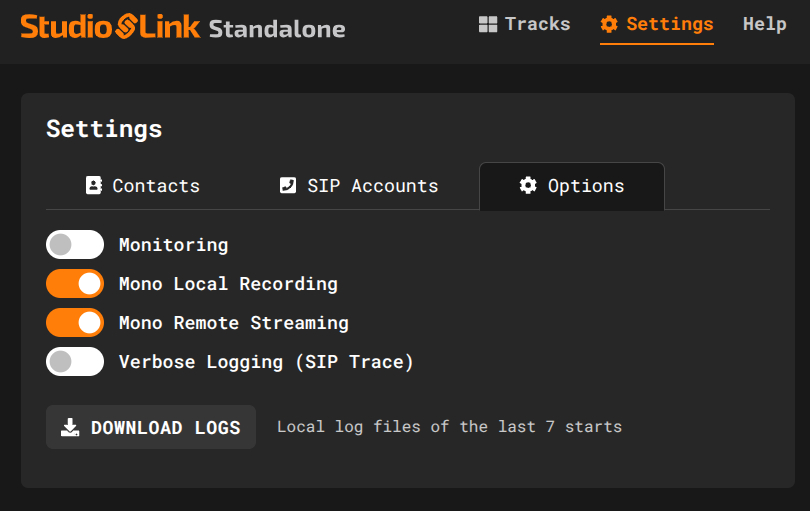
Monitoring
Default: off
Plays your own microphone signal directly (not via the network) on your headphones, so you hear yourself, similar to the direct monitoring of many audio interfaces.
Useful if your audio interface/headset has no direct monitoring of its own. If your interface already provides direct monitoring, leave this option off, otherwise you hear your own voice twice.
Headphones only
Only use monitoring with (closed) headphones. With speakers you will get feedback.
Mono Local Recording
Default: on
Records only one input channel and puts it on both sides (left and right). It uses the channel selected under Interface → Input Channel, or all channels mixed together with "Mix all input channels". This applies to the local recording and to the signal sent to your conversation partners.
This is the right setting for a single microphone: without it, a mono microphone on the first input would only be heard on the left channel.
Turning this option on also turns on Mono Remote Streaming.
Mono Remote Streaming
Default: on
Mixes the signal sent to your conversation partners down to mono (left and right channel are mixed together). The local recording stays stereo as long as Mono Local Recording is off.
Turn it off if you deliberately want to send a stereo signal (e.g. music or a stereo microphone on two input channels). Turning it off also turns off Mono Local Recording.
Overview
| Mono Local Recording | Mono Remote Streaming | Local recording | Sent signal |
|---|---|---|---|
| on | on | Mono (one channel) | Mono (one channel) |
| off | on | Stereo | Mono (L+R mixed) |
| off | off | Stereo | Stereo |
Verbose Logging (SIP Trace)
Default: off
Writes additional debug messages and all sent and received SIP messages (registration, call setup etc.) to the log files. Helpful for troubleshooting, e.g. if an account does not register or calls do not connect.
When you run into a problem:
- Turn on Verbose Logging (SIP Trace).
- Restart Studio Link, so the registration at startup is logged as well.
- Reproduce the problem (e.g. start a call).
- Download the log files with Download Logs and send them to support.
- Turn the option off again afterwards.
Privacy
With this option the log files contain, among other things, phone numbers, IP addresses and login data in hashed form (no plain-text passwords). Only share the log files with support.
Download Logs
Downloads the local log files of the last 7 starts as one text file. The log files are also stored in the configuration folder under .studio-link/logs in your home directory (Windows: %USERPROFILE%\.studio-link\logs).
